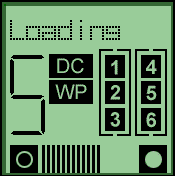
The LCD display shows status information about
the autoloader in each of its five regions. Note
that this exact display can never occur; all
sections are showing at the same time so that you
can see where they are.
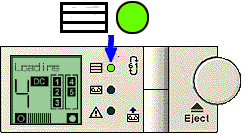
This green light indicates the activity of the
autoloader's internal tape drive:
The Select button allows you to select any of
the cartridges in the magazine for loading. If
you press the button repeatedly, the number on
the left of the front panel display cycles
through the cartridges available in the magazine.
Press the Load Cartridge button to load the
selected cartridge from the magazine into the
drive and then put the autoloader into stacker
mode. In stacker mode, the loaded cartridge is
used first; when it is full, or the host computer
sends an UNLOAD command, the autoloader
replaces it with the cartridge from the next
highest numbered slot in the magazine. See Autoloader Modes of Operation
for more information on stacker mode.
HP SureStore DAT40x6 models allow you to localize
the LCD display so that messages are displayed in the desired language.
To exit the language selection facility without selecting a language,
press the Enter button. If the Select button is not pressed for two minutes,
the drive will automatically exit the language selection facility without
selecting a language.
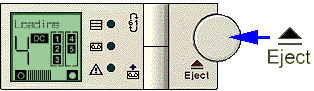
Press the Eject button to start the unload
process. The drive unloads any cartridge that is
currently loaded, and the changer mechanism
returns the cartridge to the magazine. The
magazine is then ejected.
You can also use the Eject button to force an
ejection in an emergency. See Forcing Ejection for
more information on when and why you might do
this.
The messages that can be displayed on the
front panel can be divided into three categories:
These types are described below. All the
messages are listed in alphabetical order below.
The type of message is indicated by the letter S
(Status), E (Error) or I
(Informational) in the Type column.
Note: the HP SureStore DAT40x6 autoloader also displays
the URL of our World Wide Web Support page with certain messages.
The status messages that appear on the front
panel inform you of activity in five areas:
The front panel display can display a range of
error messages relating to the autoloader's
operation. If a fault has been detected with the
mechanism, or loss of data may result, the error
message may be accompanied by the Operator
Attention Required light being on or flashing.
This is indicated in the OAR column in the
alphabetical list of messages below. Where
possible, actions you can take to recover from
the error are also given.
Information messages are displayed when power
is applied to the autoloader. They indicate its
identity, SCSI ID and configuration. They also
tell you when you have pressed the front panel
buttons to confirm that the autoloader has
recognized the action.
The following abbreviations are used in the
message listing below:
The following list gives the messages that can
be shown on the front panel display in
alphabetical order. Some of these messages only
appear on HP SureStore DAT40x6 autoloaders and some only appear on
HP SureStore DAT24x6 autoloaders (these do not have a numerical code).
Note: The list is sorted in English alphabetical order. If you have
localized your display, use your browser's Find utility to locate
a message quickly.
| Number
|
Message
|
Type
|
OAR
|
Meaning
|
| 1019
|
At BOD |
E
|
O
|
A SPACE command
encountered BOD (Beginning of Data)
unexpectedly. The tape is now positioned
at BOD. |
| 1018
|
At EOD |
E
|
O
|
A READ or SPACE
command encountered the EOD (End of Data)
area unexpectedly. The tape is now
positioned at EOD. |
| 8014
|
Bad Media |
E
|
F
|
A READ or SPACE
command has failed because the tape
cartridge is not in DDS format. Action:
Unload the cartridge and use a
DDS-certified (Media Recognition System)
cartridge. See Choosing
Cartridges.
|
| 8021
|
Cannot Write Non-MRS
Tape |
E
|
F
|
A WRITE,
WRITE FILEMARK or ERASE
command has been attempted on a non-Media
Recognition System cartridge. Action:
Remove the cartridge and replace with a
Media Recognition System cartridge. See Choosing Cartridges.
|
| 8009
|
Clean Fail: Check Cleaning Tape |
E
|
F
|
Cleaning failed, possibly due to an expired cleaning tape. Action:
Use a new cleaning cartridge.
|
| 2001
|
Clean Me |
E
|
F
|
A high error rate has
been detected reading or writing. Action:
Insert a cleaning cartridge to clean the
tape heads, ensuring that the tape in the
cleaning cartridge has not been used up.
See Cleaning the
Tape Heads.
|
| 1008
|
Cleaning |
S
|
|
A cleaning cartridge has
been loaded into the drive mechanism. |
|
|
Config: xxy |
I
|
|
This message is displayed
for two seconds during the power-up
sequence following the SCSI ID.
"xx" is the hex value of the
configuration switch setting on the
underside of the autoloader.
"y" is the autoloader option
switch value set on the rear panel of the
autoloader. |
| 2006
|
Close Door |
E
|
F
|
The front panel door is
open. Any autoloader motion will be
delayed. Action: This is probably
caused by a magazine that is partly
inserted through the door. Push the
magazine fully into the drive or remove
it.
|
| 8002
|
Drive Comms Error
|
E
|
O
|
The drive has stopped
communicating with the changer mechanism. Action:
Call
for service.
|
| 8001
|
Drive Fault |
E
|
|
The drive has detected an internal error. |
| 8004
|
Eject Fail |
E
|
F
|
An eject command has
failed, either after you pressed the
Eject button or after a host command. Action:
Try forcing
ejection.
|
| 2010
|
Eject Mag |
I
|
|
The Eject button has been
pressed. |
| 1015
|
Erase |
S
|
|
The drive is erasing data
from the tape. |
| 8000
|
Error X
|
E
|
F
|
The mechanism has jammed.
The number X identifies the reason
for the jam. Action: Press the Eject
button to attempt to recover the
cartridge and magazine. If the problem
persists, note the value of X
and call
for service.
|
| 4003
|
ERROR: No tape in slot 1 |
I
|
|
There is no tape in slot 1. HP OBDR requires
a tape in slot 1 from which it can boot. |
| 4001
|
ERROR: Unable to boot from tape |
I
|
|
The system cannot boot off the loaded tape. |
| 1023
|
ForceEject |
I
|
|
A forced ejection is in
progress (see Forcing
Ejection). |
| 1014
|
Format |
S
|
|
A SCSI command for
generating a one- or two-partition tape
is being executed, or the drive is
changing the size of the partitions on an
existing two-partition tape. |
|
|
FRU 1 Dead |
E
|
O
|
The controller board for
the drive mechanism in the autoloader has
failed its self-test. Action: Call
for service.
|
|
|
FRU 2 Dead |
E
|
O
|
The drive mechanism has
failed its self-test Action: Call
for service.
|
| 3002
|
FW Check |
S
|
|
Firmware upgrade data is
being checked for compatibility. |
| 8024
|
FW Data Err |
E
|
F
|
The autoloader has failed
to upgrade the firmware because the new
firmware is corrupt. Action: Obtain a
good copy of the firmware upgrade.
|
| 3003
|
FW Program |
S
|
|
The drive is being
upgraded with the new firmware. |
| 3005
|
FW Tape |
I
|
|
The tape loaded is a firmware upgrade tape. |
| 3001
|
FW Upgrade |
S
|
|
Firmware upgrade data is
being read from a cartridge. |
| 8025
|
FW Read Fail |
E
|
F
|
A firmware upgrade failed
because of an error in reading data from
the cartridge. Action: Try again. If
it still fails, call
for service.
|
| 8027
|
FW Tape Write
Protected |
E
|
F
|
A firmware upgrade failed
because the cartridge is write-protected. Action:
Change the write-protect switch on the
cartridge and try again.
|
| 8026
|
FW Write Fail |
E
|
F
|
A firmware upgrade failed
because of an error in writing a modified
upgrade count to the tape. Action: Try
again. If it still fails, call
for service.
|
|
|
Illegal FW |
E
|
F
|
The autoloader has failed
to upgrade the drive firmware because the
new firmware is incompatible. Action:
Obtain a correct version of the firmware
upgrade.
|
|
|
Illegal HW |
E
|
F
|
The autoloader has failed
to upgrade the drive firmware because the
new firmware is for incompatible
hardware. Action: Obtain a correct
version of the firmware upgrade.
|
| 2002
|
Insert Mag |
S
|
|
The autoloader is waiting
for you to insert a magazine. |
| 8003
|
Load Fail: Try New Tape |
E
|
F
|
A load command has
failed, or a load or change partitions
command has failed to read the system
area of the tape, which stores
information about tape usage. Action:
Use a new cartridge.
|
| 8007
|
Load Fail: Press Eject |
E
|
F
|
A load command has
failed, or a load or change partitions
command has failed to read the system
area of the tape, which stores
information about tape usage. Action:
Press the Eject button.
|
| 1021
|
Load Lock |
I
|
|
Manual loading is locked (Media Removal Prevented). |
| 2009
|
Load Tape |
I
|
|
This is displayed when
you press the Load Cartridge button. |
| 1003
|
Loading |
S
|
|
Either a cartridge is
being moved from the magazine and placed
into the drive mechanism, or the drive is
loading a cartridge. |
| 1016
|
Locate |
S
|
|
The drive is moving the
tape to a point specified by the host. |
| 1002
|
Mag Check |
S
|
|
The autoloader is
examining the magazine to determine which
slots are occupied. |
| 1001
|
Mag Eject |
S
|
|
The autoloader is
ejecting the magazine. |
| 1006
|
Mag Loaded |
S
|
|
A magazine is present in
the autoloader, and the magazine check
has been carried out. |
| 8005
|
Media Removal
Prevented |
E
|
O
|
An eject command has been
attempted after a SCSI PREVENT MEDIUM
REMOVAL command has been sent by the
host. Action: Try again when the media
removal prevention has been removed. This
can be achieved by the host sending a SCSI
ALLOW MEDIUM REMOVAL command, or by
resetting or power-cycling the
autoloader.
|
| 3004
|
New FW!!!! |
S
|
|
The firmware upgrade
process has been successfully completed. |
| 8016
|
No EODmark |
E
|
F
|
The drive is trying to
read what appears to be a blank cartridge
(one with no DDS-format End of Data
pattern). This is probably a result of
power failure while writing. |
| 4000
|
OBDR Mode |
I/S
|
F
|
The drive has switched to HP One-Button
Disaster Recovery mode and is restoring the operating system. |
| 1017
|
Partition |
S
|
|
The drive is switching to
the other partition on a two-partition
tape. |
| 8017
|
Partition 1 too large
|
E
|
O
|
A command to format the
tape has failed because the requested
size for partition 1 is too large. Action:
Try again with a smaller partition 1 or,
if possible, a longer tape.
|
| 2007
|
Press Eject |
I
|
|
Press the EJECT button. |
| 1009
|
Read |
S
|
|
The drive is reading data
from the tape. |
| 8012
|
Read Fail |
E
|
F
|
A read has failed. The
host should reposition and try again. |
|
|
Read Only |
S
|
|
Loaded cartridge is
write-protected. See the “Ready
xxm” message. |
|
|
Ready xxm
|
S
|
|
A cartridge has been
loaded in the DAT drive, and the drive is
ready for tape motion commands. "xxm"
is the length of the currently loaded
cartridge. For example, "Ready
125m" will be displayed when a DDS-3
(125m) cartridge is loaded. If a
write-protected cartridge is loaded, the
"Ready xxm" message
alternates with the "Read
Only" message. |
| 1013
|
Rewind |
S
|
|
The drive is rewinding
the tape to the beginning of the
partition. |
| 8020
|
SCSI Error |
E
|
O
|
A SCSI command error has
been detected. Action: Check the SCSI
interface connection and try again.
|
|
|
SCSI ID: x
|
I
|
|
This indicates the SCSI
ID ("x") of the
autoloader. During the power-on sequence,
it is displayed for 2 seconds. |
| 1012
|
Search << |
I
|
|
The drive is searching
for a record, filemark, setmark, or BOD
(Beginning of Data) towards the beginning
of the tape (in SCSI terms, it is
responding to a SPACE command
with a negative Count field). |
| 1011
|
Search >> |
I
|
|
The drive is searching
for a record, filemark, setmark, or EOD
(End of Data) towards the end of the tape
(in SCSI terms, it is responding to a SPACE
command with a positive Count field). |
| 1022
|
Select Lock |
I
|
|
Tape Selection is locked (Media Removal Prevented). |
| 2008
|
Select Tape |
I
|
|
This is displayed when
you press the Select button and for a
short time after the button is released. |
| 0000
|
Self Test |
S
|
|
The autoloader is
performing its power-on self-test. |
| 1007
|
SemiLoaded |
S
|
|
A cartridge is in the
drive but not loaded (the tape has not
been threaded). |
| 2003
|
Stray Tape: Insert
Empty Mag |
I
|
|
There is a cartridge in
the tape drive, but there is no magazine
present to put it in. Action: Insert an
empty magazine to retrieve the cartridge.
|
| 8006
|
Tape Fault |
E
|
F
|
The cartridge in the
drive is faulty, possibly because the
tape has snapped, or the cartridge has an
invalid pattern of identification holes. Action:
Use a new cartridge and ensure that it is
Media Recognition System. See Choosing Cartridges.
|
| 1024
|
Tape Full |
E
|
O
|
A READ, SPACE,
WRITE or WRITE FILEMARKS
command encountered EOP (End of
Partition) unexpectedly. When reading,
this may mean the required data is on the
next cartridge in the sequence. |
| 8019
|
Tape has DC data
|
E
|
O
|
A READ command
has encountered compressed data on the
tape, and the drive is not currently
configured to decompress data. The host
may have disabled data compression, or
configuration switch 2 (on the underside
of the autoloader) may be off so the
host's ability to control the drive's
state is disabled. Action: Check that
the host has not disabled data
compression. Make sure that switch 2 is
on by reconfiguring the drive using the
configuration switches on the underside
of the autoloader. See the Setting the
Configuration Switches for
information about setting the
configuration switches to control data
compression.
|
| 8013
|
Tape Position Lost
|
E
|
O
|
A WRITE, READ,
SPACE or REWIND command
has failed to complete. The tape is
positioned on the far side of the bad
groups of data. Action: Reposition and
try again.
|
| 8008
|
Tape Stuck |
E
|
F
|
The cartridge is stuck in
the drive. Action: Try forcing ejection.
If this fails, call
for service.
|
| 4002
|
Unable to boot: Cleaning tape |
I
|
|
The system cannot boot off a cleaning tape. |
| 1004
|
Unloading |
S
|
|
Either the drive is
unloading a cartridge, or a cartridge is
being ejected from the drive and replaced
in the magazine. |
| 8022
|
Upgrade Err |
E
|
F
|
An error occurred upgrading.
|
| 8015
|
Worn Media |
E
|
F
|
A high error rate has
been detected while writing, suggesting
that the cartridge is nearing the end of
its useful life. Action: Copy any data
you wish to keep from the cartridge onto
a new cartridge and discard the old
cartridge.
|
| 1010
|
Write x.y:1
|
S
|
|
The drive is writing data
to tape. "x.y:1"
is the cumulative compression ratio since
power-on, or since the compression ratio
was last cleared. For example, "Write
2.1" means a compression ratio
of 2.1:1. The compression ratio is only
displayed after about 1 megabyte of data
has been written since power-on. |
| 8010
|
Write Fail |
E
|
F
|
A WRITE, WRITE
FILEMARK or ERASE command
has failed. Action: Use a new
cartridge.
|
| 8003
|
Write Fail: Clean or Use New Tape |
E
|
F
|
The drive could not write to the tape. The tape is possibly
worn or damaged.
|
| 8018
|
Write Protected Tape
|
E
|
F
|
A WRITE, WRITE
FILEMARK or ERASE command
has been attempted on a write-protected
cartridge. Action: Remove the cartridge
and change it to write-enabled.
|
| 8023
|
Wrong FW |
E
|
F
|
The upgrade firmware is not compatible.
The drive has not been programmed.
|
![[HP SURESTORE DAT USER'S GUIDE]](images/main_hdr.gif)
![[HOME]](images/home_ic.gif)
![[SEARCH]](images/cd_ic.gif)
![[HELP]](images/help_ic.gif)
![[AUTOLOADER FRONT PANEL]](../images/al_frnt.gif)
![[AUTOLOADER TAPE LIGHT LOCATION]](../images/al_tape.gif)
![[OPERATOR ATTENTION REQUIRED LIGHT]](../images/oar_err.gif)
![[SELECT BUTTON]](../images/selctbut.gif)
![[LOCATION OF LOAD BUTTON]](../images/load_but.gif)
![[HP SURESTORE DAT USER'S GUIDE]](images/btm_bnr.gif)
![[BACK TO TOP]](images/top_ic.gif)